Turn Your Drawing into Animation with AI – Free and Local (Wan 2.2)
A hand-drawn sketch can become a moving clip in three ways: keep the drawing style, switch it to a new style, or turn it into something that looks real. Here is how each one works, with real results.
Drawing to real: a crayon rocket becomes a real launch
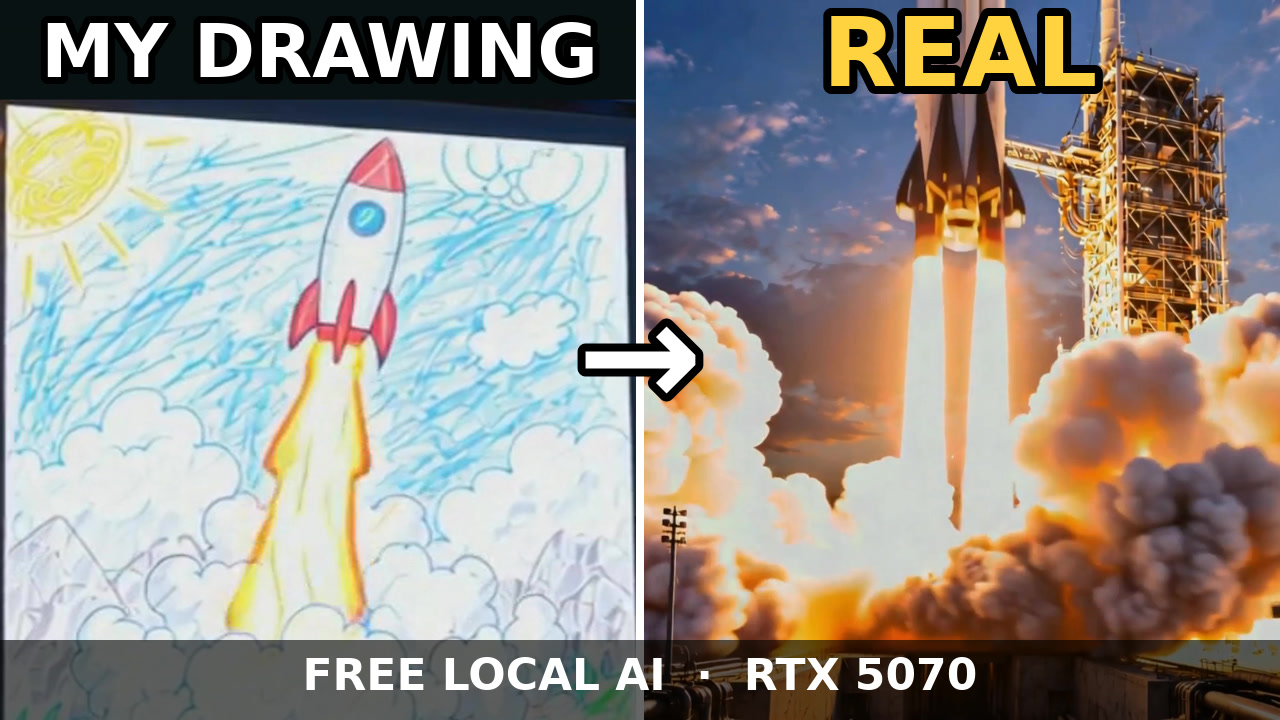
The full music video, starting at the rocket scene. Watch on YouTube.
This is what most people search for as "turn drawing into realistic AI". The drawing gives the idea and the composition: a rocket, a cloud of smoke, a sky. The model turns it into a real-looking launch at sunrise.
Three ways to animate a drawing
1. Keep the drawing style (Stable Scene)
The crayon or pencil look stays. Only motion is added: the character turns its head, grass sways, clouds drift. Best for children's drawings you want to keep recognisable.
2. Change the style (Wild Mode)

The drawing becomes a starting point. The model can turn it into a comic, a cartoon or a 3D scene while the character stays recognisable.
3. Turn it into something realistic (First → Last Frame)

Give the drawing as the first frame and a realistic image as the last frame. The model invents the path between them, and the result changes from run to run. More on that in our First Frame Last Frame experiment.
Step by step
- Photograph or scan the drawing. Even daylight, no shadows, crop to the paper. A phone photo is fine.
- Pick a mode: Stable Scene, Wild Mode or First → Last Frame.
- Describe the motion. One or two clear actions plus small background movement. Example: "The giraffe slowly turns its head and smiles. Clouds drift, the grass sways in the wind."
- Draft at 832×480. About 11 minutes on a 12GB card. Check the motion, adjust the prompt.
- Render the final at a higher resolution (for example 1536×864) and let it upscale. Run it overnight if needed.
Tips that make a big difference
- Simple, bold drawings animate best. Clear outlines and solid colours give the model more to work with.
- Ask for less motion. Big actions can distort a drawn character. Small movements look natural.
- Try a few runs. Each render uses a different random seed. Draft two or three and keep the best.
- Mind the copyright. Animate your own drawings, your kids' drawings, or public-domain art, not illustrations from published books.
What you need
- Windows or Linux PC with an NVIDIA GPU (12GB VRAM recommended, 8GB works at lower resolution)
- 32GB RAM minimum, 64GB recommended for high resolution
- About 40GB of free disk space for the one-time model download
Real render times and memory numbers: Wan 2.2 on a 12GB GPU.
Tools and sources
- Wan 2.2, the open-source video model by Alibaba's Wan team (Apache 2.0 license)
- ComfyUI, the open-source engine Loomance runs on
- Loomance, the desktop app used for these renders (free, ad-supported)
Frequently asked questions
Turn your drawing into animation
Loomance is free to use (ad-supported) and renders on your own NVIDIA GPU. Your drawing never leaves your PC.
Download free